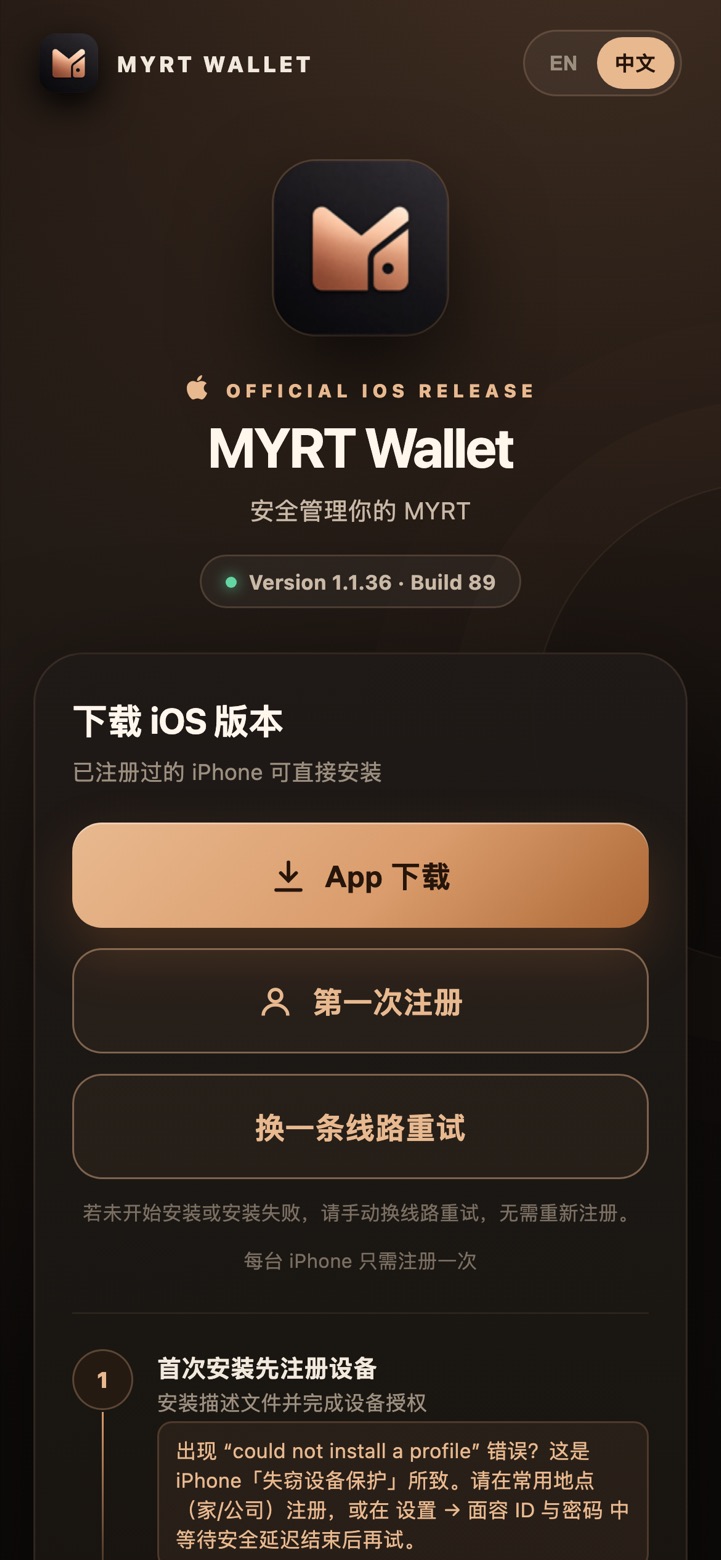
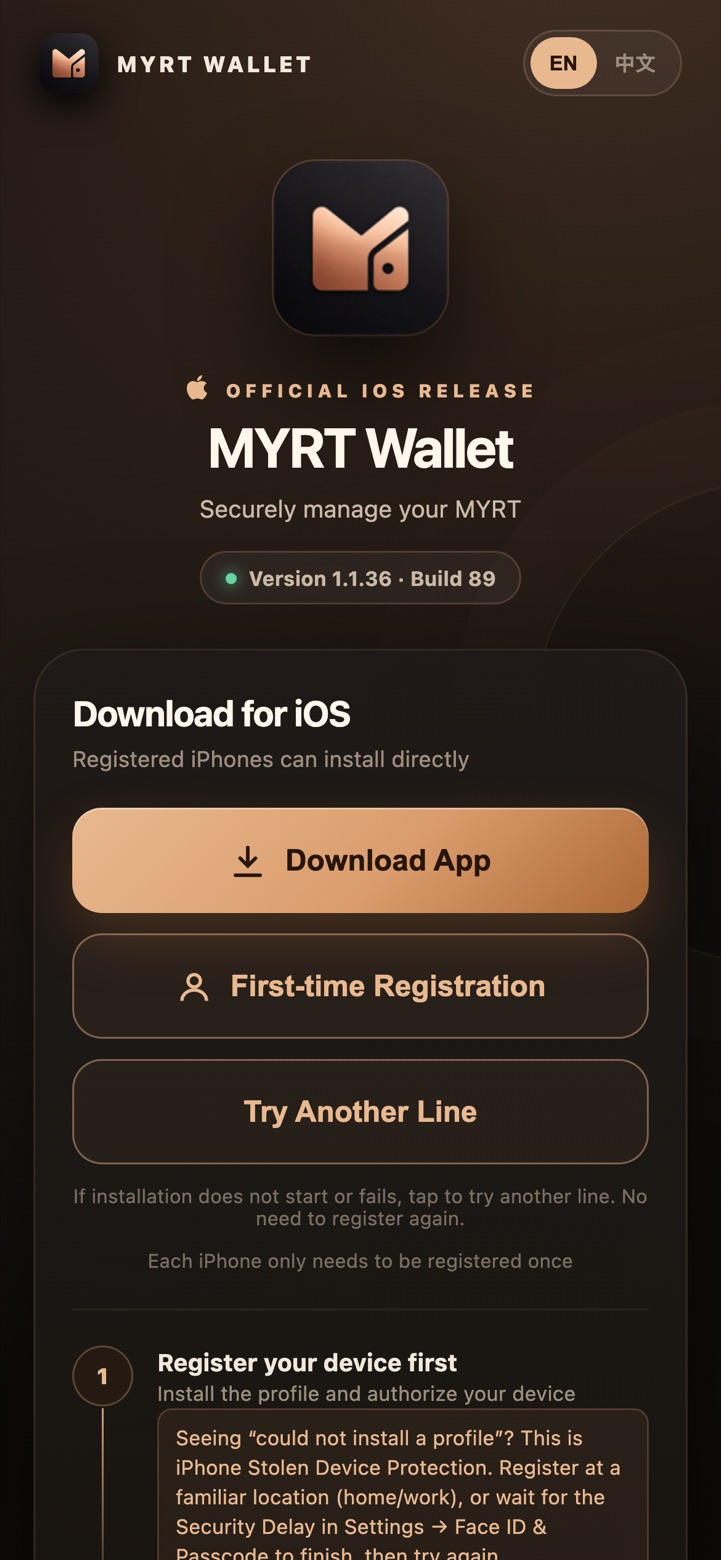
一定要用 Safari 浏览器打开 ios.myrtwallet.io。不要在微信、Telegram、WhatsApp、Facebook 里直接点开,也不要用 Chrome —— 这些都装不了。在聊天里收到链接时,点右上角 ⋯ 选「在 Safari 中打开」,或复制链接粘贴到 Safari。You must use Safari. Open ios.myrtwallet.io in Safari. Opening it inside WeChat, Telegram, WhatsApp, Facebook or Chrome will NOT work. If you got the link in a chat, tap ⋯ → “Open in Safari”, or copy the link and paste it into Safari.
准备好你的 iPhone 锁屏密码(安装时要输入)。Have your iPhone passcode ready (you will be asked for it).
网络要稳定,注册过程中不要切换网络或开关 VPN。Use a stable connection. Don’t switch networks or toggle VPN during registration.
每台 iPhone 只要注册一次。以前注册过的,直接跳到 第 ② 步。Each iPhone only needs to register once. Already registered? Jump to Step ②.
1注册设备Register your device
把你的 iPhone 加入授权名单,之后才能安装 App。只做一次。Adds your iPhone to the allowed device list so the app can be installed. One time only.
1.1用 Safari 打开下载页,点「第一次注册」Open the page in Safari, tap “First-time Registration”
打开 https://ios.myrtwallet.io,右上角可切换语言,然后点 第一次注册First-time Registration。Open https://ios.myrtwallet.io. You can switch language at the top right. Then tap 第一次注册First-time Registration.
① 切换语言 ② 点「第一次注册」① Language ② “First-time Registration”实拍Real
1.2允许下载描述文件Allow the profile download
Safari 会弹出提示,点 允许Allow。接着提示「已下载描述文件」,点 关闭Close。Safari asks for permission — tap 允许Allow. Then “Profile Downloaded” appears — tap 关闭Close.
9:41●●● ▮
MYRT Wallet
ios.myrtwallet.io
此网站正尝试下载一个配置描述文件。要允许吗?This website is trying to download a configuration profile. Do you want to allow this?
忽略Ignore允许Allow
点「允许」Tap “Allow”示意图Illustration
9:41●●● ▮
MYRT Wallet
ios.myrtwallet.io
已下载描述文件Profile Downloaded
如果要安装描述文件,请在“设置”App 中检查描述文件。Review the profile in the Settings app if you want to install it.
关闭Close
点「关闭」Tap “Close”示意图Illustration
没看到弹窗?No pop-up?多半是没用 Safari。请用 Safari 重新打开下载页再点一次。You are probably not in Safari. Reopen the page in Safari and try again.
回到主屏幕打开 设置(灰色齿轮)。最上面会多出一行 已下载描述文件Profile Downloaded,点进去。Go to the Home Screen and open Settings (grey gear). Near the top you’ll see 已下载描述文件Profile Downloaded — tap it.
9:41●●● ▮
设置Settings
👤
Apple 账户Apple Account
›
已下载描述文件Profile Downloaded›
✈︎飞行模式Airplane Mode
ᯤ无线局域网Wi-Fi›
ᛒ蓝牙Bluetooth›
⚙︎通用General›
设置最上方的「已下载描述文件」“Profile Downloaded” near the top of Settings示意图Illustration
找不到?进 设置 → 通用 → VPN 与设备管理 也能找到。描述文件下载后 8 分钟内没安装会被系统自动删除,过期就回到 1.1 重新点「第一次注册」。Can’t find it? Look in Settings → General → VPN & Device Management. iOS deletes a downloaded profile if it isn’t installed within 8 minutes — if so, go back to 1.1 and tap “First-time Registration” again.
1.4安装描述文件Install the profile
点右上角 安装Install。Tap 安装Install (top right).
输入 iPhone 锁屏密码。Enter your iPhone passcode.
如果再出现确认,再点一次 安装Install。If asked again, tap 安装Install once more.
9:41●●● ▮
取消Cancel安装描述文件Install Profile安装Install
⚙︎
MYRTWallet Device Registration MYRTWallet
签名者Signed by未签名Not Signed
描述DescriptionThis profile registers your device so the app can be installed on it.
点右上角「安装」Tap “Install” (top right)示意图Illustration
9:41●●● ▮
输入密码Enter Passcode
1234567890
输入锁屏密码Enter your passcode示意图Illustration
「未签名 Not Signed」是红字,正常吗?“Not Signed” is shown in red — is that OK?正常,可以放心安装。这个描述文件只读取设备标识(UDID)用于登记,不读取照片、短信、密码,也不会管理或锁定你的手机。装完 App 后可以在设置里删除它。Yes, that’s normal — go ahead. The profile only reads your device identifier (UDID) for registration. It cannot read photos, messages or passwords, and cannot manage or lock your phone. You may remove it after the app is installed.
出现错误提示?Seeing an error?「Profile Installation Failed / Invalid Profile」→ 看 这里;「Could not install a profile」(失窃设备保护)→ 看 这里。“Profile Installation Failed / Invalid Profile” → see here. “Could not install a profile” (Stolen Device Protection) → see here.
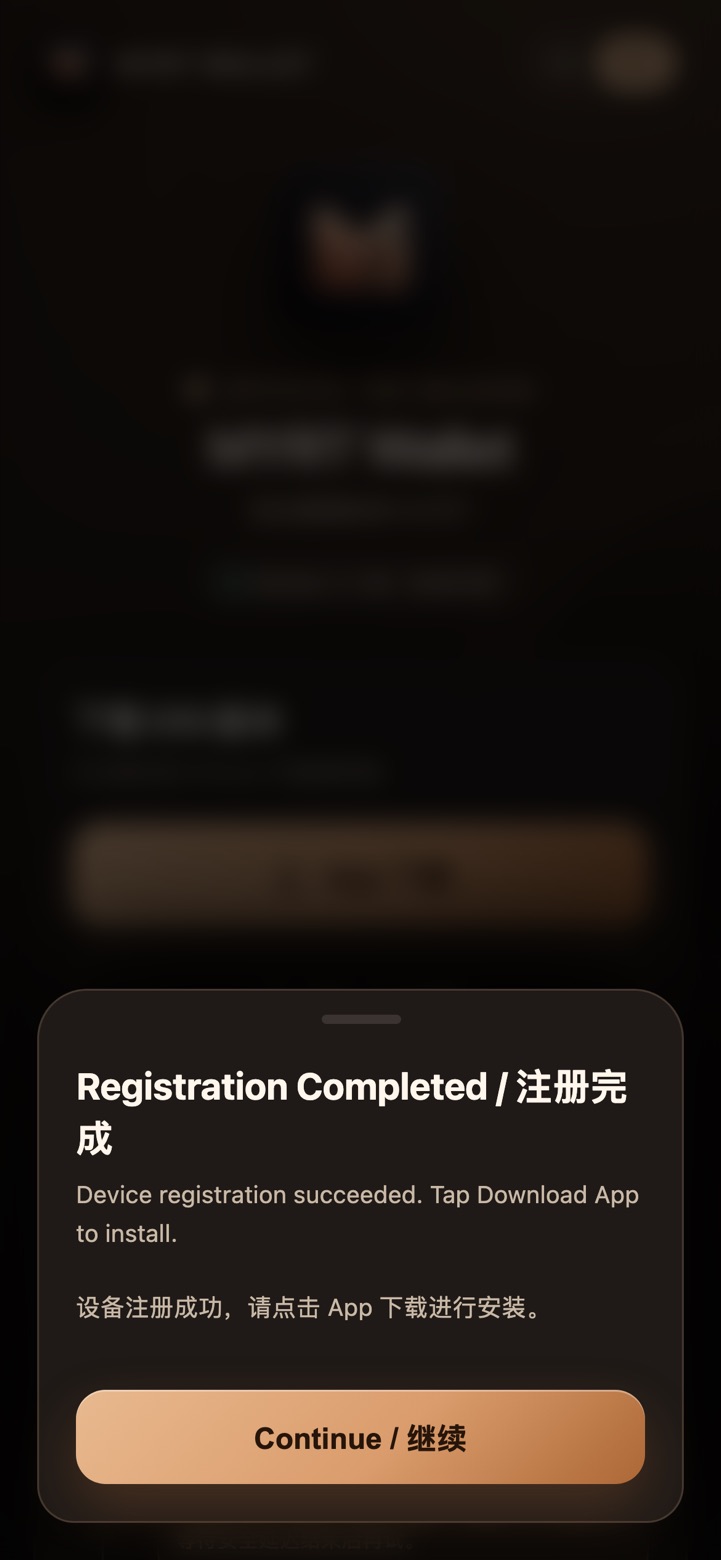
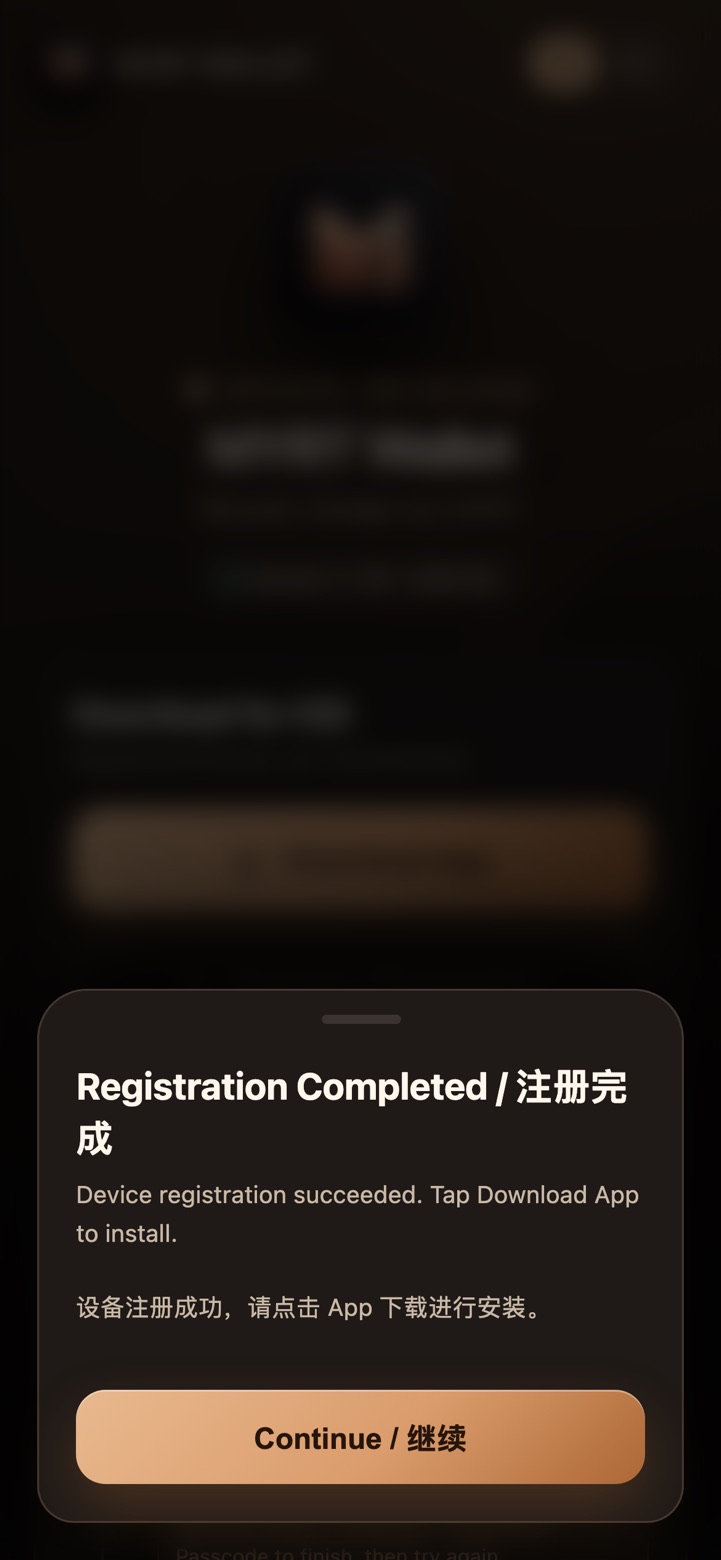
1.5自动回到网页,看到「注册完成」You’re sent back to the page: “Registration Completed”
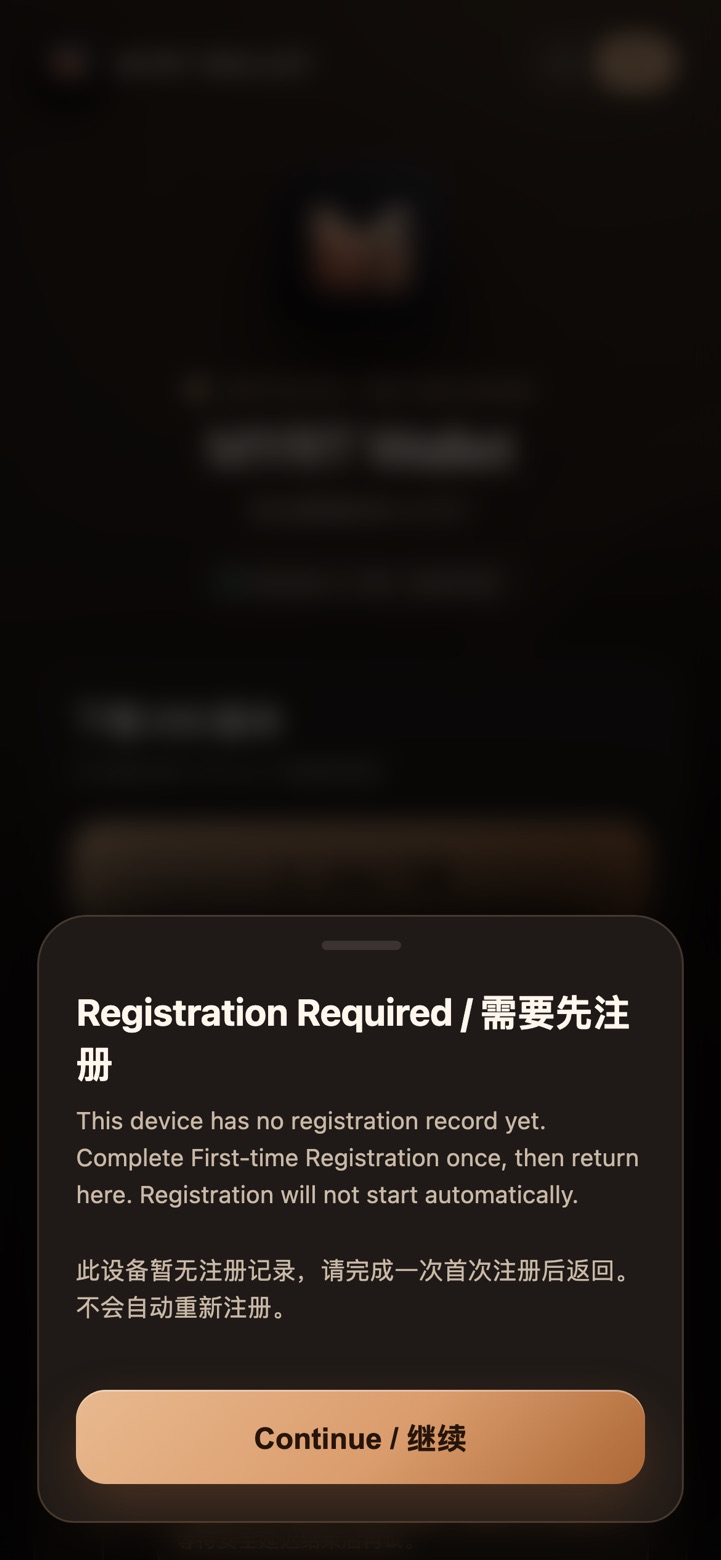
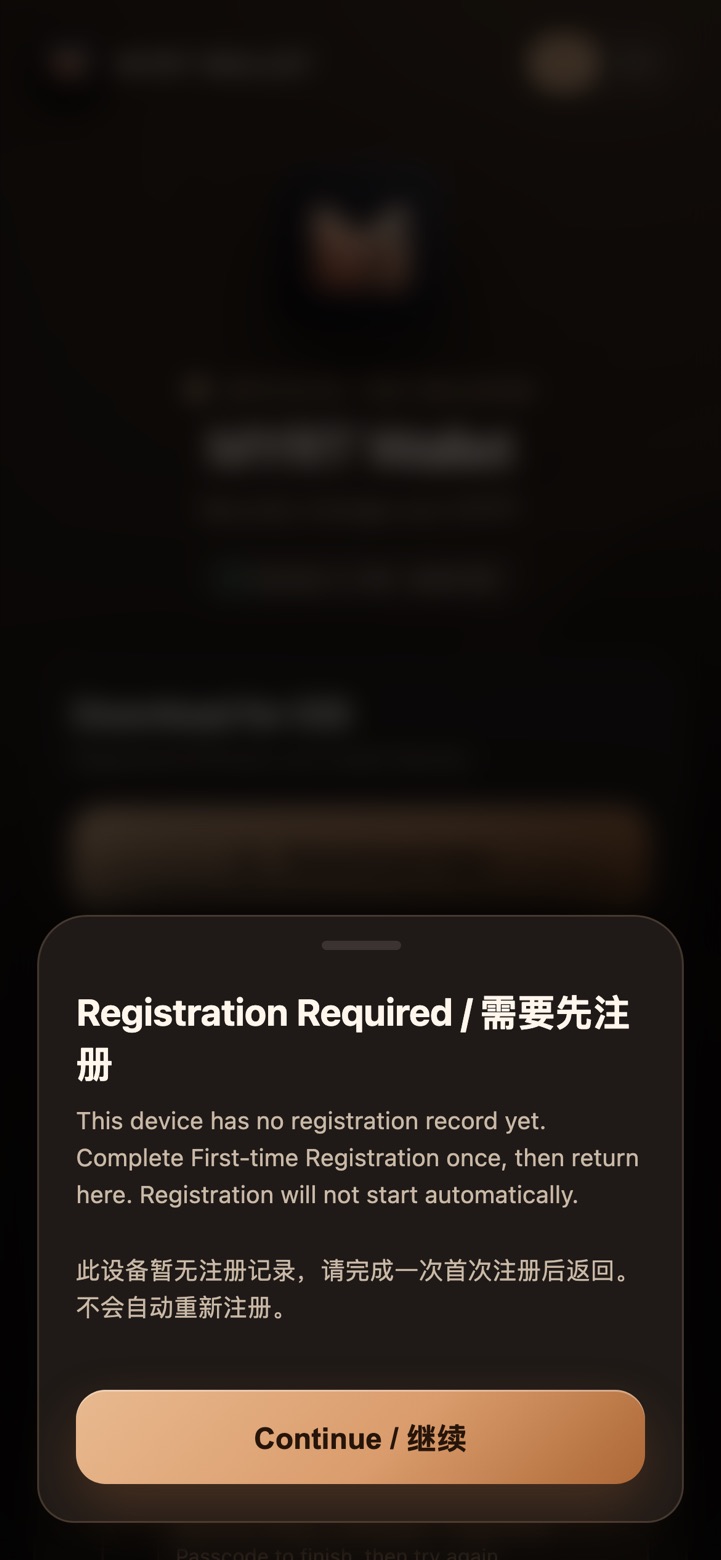
安装后会自动跳回下载页,弹出 注册完成。点 继续Continue,注册完成 🎉After installing, Safari reopens the download page showing Registration Completed. Tap 继续Continue — done 🎉
没有自动跳回?手动用 Safari 打开 ios.myrtwallet.io,直接做第 ② 步。Not redirected? Open ios.myrtwallet.io in Safari yourself and go to Step ②.
2下载 AppDownload the app
注册过的 iPhone,以后每次安装/更新都从这一步开始。Registered iPhones start here every time (install or update).
2.1点「App 下载」Tap “Download App”
点橙色大按钮 App 下载Download App。Tap the big orange App 下载Download App button.
点「App 下载」Tap “Download App”实拍Real
2.2系统弹窗点「安装」Tap “Install” in the iOS pop-up
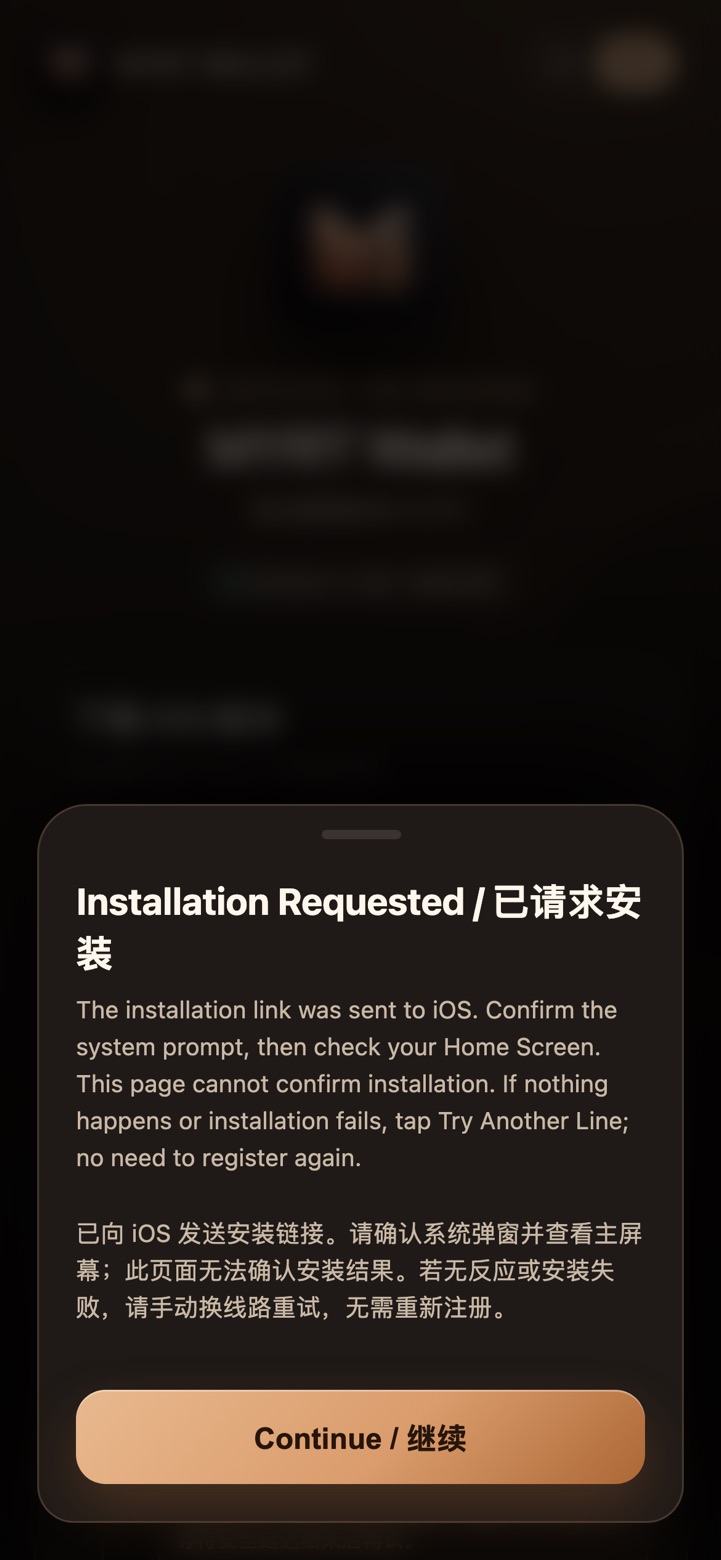
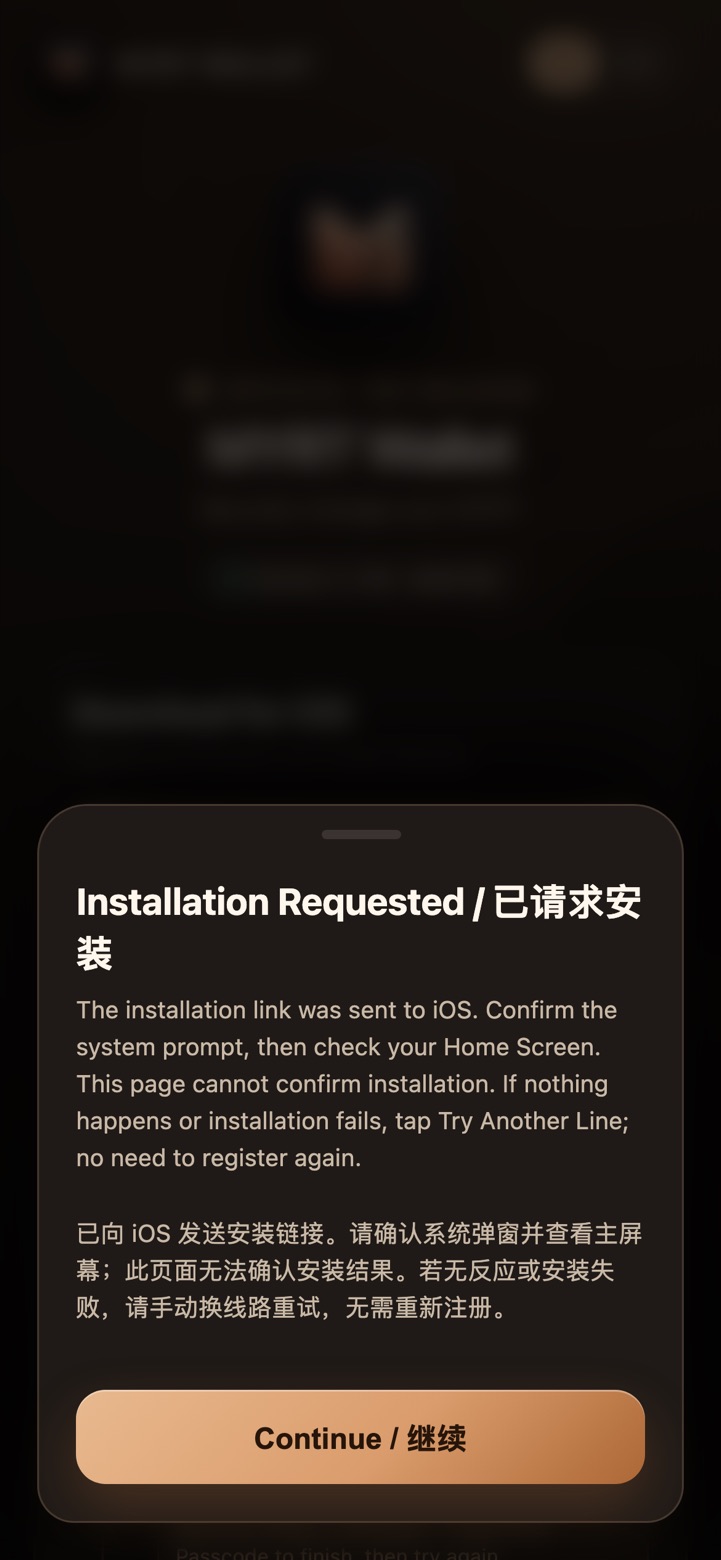
iPhone 弹出「“ios.myrtwallet.io”想要安装“MYRT Wallet”」,点 安装Install。网页同时显示「已请求安装」。iOS asks “ios.myrtwallet.io would like to install MYRT Wallet” — tap 安装Install. The page shows “Installation Requested”.
9:41●●● ▮
MYRT Wallet
ios.myrtwallet.io
“ios.myrtwallet.io”想要安装“MYRT Wallet”“ios.myrtwallet.io” would like to install “MYRT Wallet”
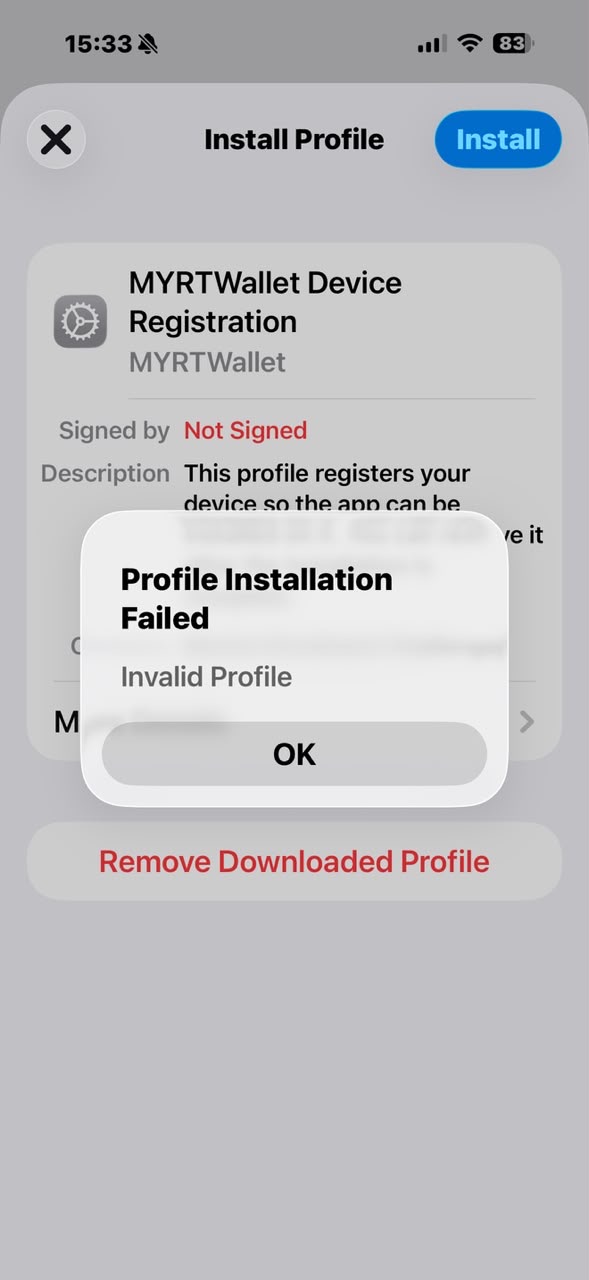
描述文件安装失败 / 描述文件无效Shown after tapping Install in Step 1.4
看到You see输完密码后弹出这个This appears after entering your passcode
用户实拍Real user screenshot实拍Real
红色「Not Signed / 未签名」不是原因,所有用户都会看到,可以忽略。The red “Not Signed” is NOT the cause — everyone sees it, ignore it.
这个错误表示 iPhone 把设备信息发回服务器时没有收到正确回应(网络中断、描述文件过期或被重复使用)。不是你的手机有问题。It means the iPhone didn’t get a valid reply when sending its device info back to the server (network drop, profile expired or reused). Your phone is fine.
解决Fix删除旧的,重新拿一个新的Remove the old profile and get a fresh one
点 好OK。Tap 好OK.
点红色的 移除已下载的描述文件Remove Downloaded Profile。Tap the red 移除已下载的描述文件Remove Downloaded Profile.
用 Safari 回到下载页,重新点第一次注册First-time Registration,拿一个新的描述文件。旧的不能重复使用。In Safari, go back to the download page and tap 第一次注册First-time Registrationagain to get a new profile. Old profiles can’t be reused.
下载后 马上 去设置安装(几分钟内完成),中途不要切换 Wi-Fi/流量或开关 VPN。Install it right away (within a few minutes). Don’t switch Wi-Fi/mobile data or toggle VPN in between.
还是失败:换一个网络(Wi-Fi ↔ 流量)再从第 3 步重来。Still failing? Switch network (Wi-Fi ↔ mobile data) and repeat from step 3.
!提示「无法安装描述文件 / Could not install a profile」“Could not install a profile”
新版 iOS 默认开启「失窃设备保护」。当 iPhone 判断你不在常用地点(不在家、不在公司)时,会挡住安装描述文件。Newer iOS turns on Stolen Device Protection. When the iPhone thinks you are away from familiar locations (home, work), it blocks installing profiles.
9:41●●● ▮
取消Cancel安装描述文件Install Profile安装Install
⚙︎
MYRTWallet
无法安装描述文件Could not install a profile
“失窃设备保护”已开启。Stolen Device Protection is on.
好OK
被失窃设备保护挡住Blocked by Stolen Device Protection示意图Illustration
办法 AFix A(最简单)回到家或公司再注册(Easiest) Register at home or work
在常待的地方,iPhone 不会拦截。到那里后从 1.1 重新注册。At a familiar location the iPhone won’t block it. Restart from 1.1 there.
办法 BFix B等「安全延迟」结束Wait out the Security Delay
打开 设置 → 面容 ID 与密码(旧机型:触控 ID 与密码),输入密码。Open Settings → Face ID & Passcode (older phones: Touch ID & Passcode) and enter your passcode.
点 失窃设备保护Stolen Device Protection,按提示关闭。Tap 失窃设备保护Stolen Device Protection and follow the prompts to turn it off.
不在熟悉地点时需要等 1 小时安全延迟,到时间再用面容 ID 确认。Away from familiar places you must wait a 1-hour Security Delay, then confirm with Face ID.
设置 → 面容 ID 与密码 → 失窃设备保护Settings → Face ID & Passcode → Stolen Device Protection示意图Illustration
注册完记得重新打开Turn it back on afterwards「失窃设备保护」能在手机被偷时保护资料。注册只需一次,完成后建议重新打开,之后安装/更新都不会再碰到这个问题。Stolen Device Protection protects your data if the phone is stolen. Registration is one-time, so turn it back on afterwards — installs and updates won’t need it off again.
↻更新 / 重新安装Update / reinstall
App 提示要更新:用 Safari 打开下载页直接点 App 下载Download App,覆盖安装,不用重新注册。App asks you to update: open the page in Safari and tap App 下载Download App. It installs over the old one — no need to register again.
删了 App 想重装:同样直接点 App 下载Download App。Deleted the app? Just tap App 下载Download App again.
点「第一次注册」没有任何弹窗?Nothing happens when I tap “First-time Registration”?
确认是用 Safari 打开的(不是微信/Telegram/Chrome 里面)。是的话等几秒再点;网页提示「注册服务暂时不可用」就稍后再试。Make sure you are in Safari (not inside WeChat/Telegram/Chrome). If so, wait a few seconds and tap again. If the page says the service is unavailable, try later.
设置里找不到「已下载描述文件」?Can’t find “Profile Downloaded” in Settings?
去 设置 → 通用 → VPN 与设备管理 找。还是没有,可能超过 8 分钟被系统删了,回下载页重新点「第一次注册」。Check Settings → General → VPN & Device Management. If it’s not there, it expired after 8 minutes — tap “First-time Registration” again.
「Not Signed / 未签名」红字安全吗?Is the red “Not Signed” safe?
安全。它只读取设备标识(UDID)用于登记,不读取个人资料,也不能远程管理你的 iPhone。Yes. It only reads the device identifier (UDID) for registration — no personal data, no remote management.
装好了但图标灰色/一直转圈?Icon is grey / keeps spinning?
多等 1 分钟。还是不动,长按图标删除,回下载页点「换一条线路重试」。Wait another minute. If still stuck, delete the icon and tap “Try Another Line” on the download page.
打开 App 提示「无法验证 App」?“Unable to Verify App” when opening?
确认网络正常再打开一次;还不行就回下载页点「App 下载」重装,账户资料不会丢。Check your internet and try again. If it persists, reinstall via “Download App” — your account data is kept.
提示需要开启「开发者模式」?Asked to enable “Developer Mode”?
进入 设置 → 隐私与安全性 → 开发者模式 打开,手机会重启,重启后点「打开」并输入密码。(大部分手机不会遇到)Go to Settings → Privacy & Security → Developer Mode, turn it on, the phone restarts, then tap “Turn On” and enter your passcode. (Most phones won’t see this.)
 MYRT WALLET
← 下载页← Download
MYRT WALLET
← 下载页← Download